Choose Photos and Assign Roles for Your LoftNum Video
Pick clear portraits, choose who sings or plays, and check the roles before making an Oouuh, Smalltown Boy, or Burning Bridges video.
 LoftNum Editorial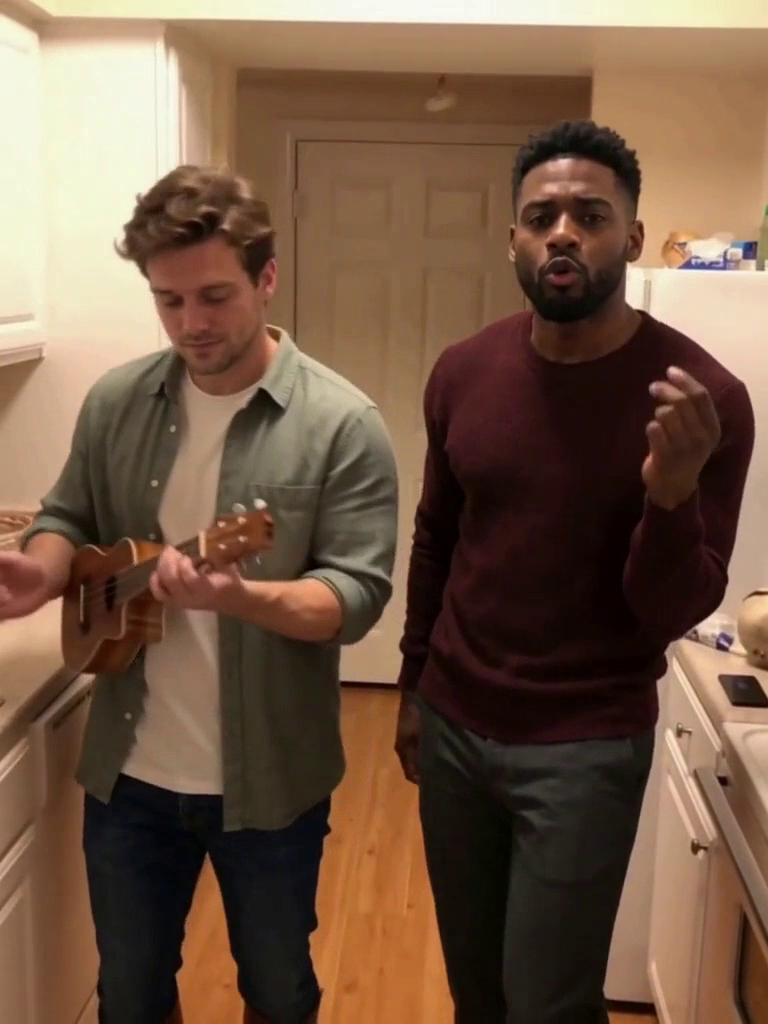
Start by watching the example on the experience page. It shows the kind of result you are making. LoftNum supplies the video template, so you can add your photos without finding or uploading an original video.
For an Oouuh kitchen duet, add one portrait for the singer and one for the ukulele player. Keep the default kitchen if you want the shortest setup.
Choose a photo where the person is easy to recognize
Use a clear, well-lit photo with one intended person visible. A front or slight three-quarter view is a useful starting point. Avoid a face hidden by a hand, dark glasses, strong blur, or heavy filters.
You do not need a professional studio portrait. A sharp everyday photo is more useful than an elaborate shot where the face is tiny. Only upload photos you have permission to use. The editor accepts JPG, PNG, and WebP files up to 10 MB each.
Put each photo in the right role
The label above an upload box tells you which part that person will play. In the kitchen duet, Singer and Ukulele player are different roles. Use Swap the roles if you put the two photos in the opposite boxes.
For Smalltown Boy, follow the two role labels and the example before uploading. For Burning Bridges, the current option replaces the lead with one portrait. Supporting-person replacement is not available in this version.
The role preview helps you check your choices. It is a guide to the setup, not a generated result. Face details, clothing, hands, and movements can vary in the finished video.
Photo edits use a different starting point
For the pink-and-blue best-friend edit, upload one photo showing both people together. Choose which side gets pink and which gets blue, and optionally add their names. You do not need to paint the people by hand. Overlapping arms, hair, or crowded scenes can make the separation less precise, so choose a photo where both people are identifiable.
For the Halloween photo editor, upload the photo you want to add a companion to. Space beside or behind the person gives you more room for the effect.
Check once before generating
- Make sure every required photo is in the intended role.
- Leave the default scene selected, or open the optional background settings.
- Check the displayed duration and credit cost. The video template determines the duration.
- Submit once and wait for your saved task to appear.
You can review the result in My creations. For the next steps, read how to change the background or what the waiting and credit messages mean.